


How to Use Runway Gen 2 for Professional-Grade Video
Article Summary: This professional guide details how to use Runway Gen 2, focusing on its unique features like Motion Brush and Camera Control to produce high-quality videos. It offers expert tips, best practices, and a structured workflow for creators and marketers.
In today's visually-driven digital landscape, the demand for compelling video content has never been higher. Yet, for many creators and marketers, the barriers of technical skill, time, and budget remain significant hurdles. What if you could translate a clear creative vision directly into a cinematic clip without a complex production pipeline? This guide provides a definitive answer, offering a masterclass on how to use Runway Gen 2 to achieve precisely that.
This article is designed for creative professionals, marketers, and storytellers seeking to unlock the full potential of AI-assisted video creation. We will move beyond a basic overview to deliver a strategic deep dive into the Gen-2 model, focusing on its unique features that offer unparalleled creative control. By the end, you will have a clear, actionable framework for producing professional-grade videos, optimizing your workflow, and making informed decisions about the right tools for your projects.
For the latest model updates, refer to our Runway Gen-4.5 expert guide to unlock advanced camera controls.
What is Runway Gen-2? A Tool for Precision Control
Runway Gen-2 is a sophisticated AI model engineered to materialize visual concepts from text prompts and static images. Unlike other tools focused solely on speed, Gen-2 distinguishes itself with a rich suite of controls that empower creators to direct the final output with high fidelity. It serves as a digital co-pilot for crafting everything from animated sequences and product B-roll to dynamic social media content, all from a simple, intuitive interface.
The model's core strength lies in its combination of powerful text and image interpretation with a palette of granular editing tools, including camera motion, directional movement, and aesthetic styling—features that remain exclusive to this iteration.
Unlocking Gen-2's Professional Toolkit
To truly master Runway Gen-2, it's essential to understand the specific tools that grant it superior creative flexibility. These features are the building blocks of professional-quality output.
Runway Gen-2 Text-to-Video Composition
The foundation of Gen-2 is its ability to interpret detailed text prompts and synthesize them into a 4-second video clip. Its advanced algorithms analyze semantic details—scene, subject, action, and mood—to construct a visual narrative. The more specific the prompt, the more aligned the result.
Runway Gen-2 Image-to-Video Animation
This feature breathes life into static visuals. By uploading an image as a base, you can instruct the model to animate specific elements. Whether adding subtle motion to a landscape or dynamic movement to a character, this tool transforms still photography into captivating micro-videos.
Motion Brush: Directing the Flow of Movement
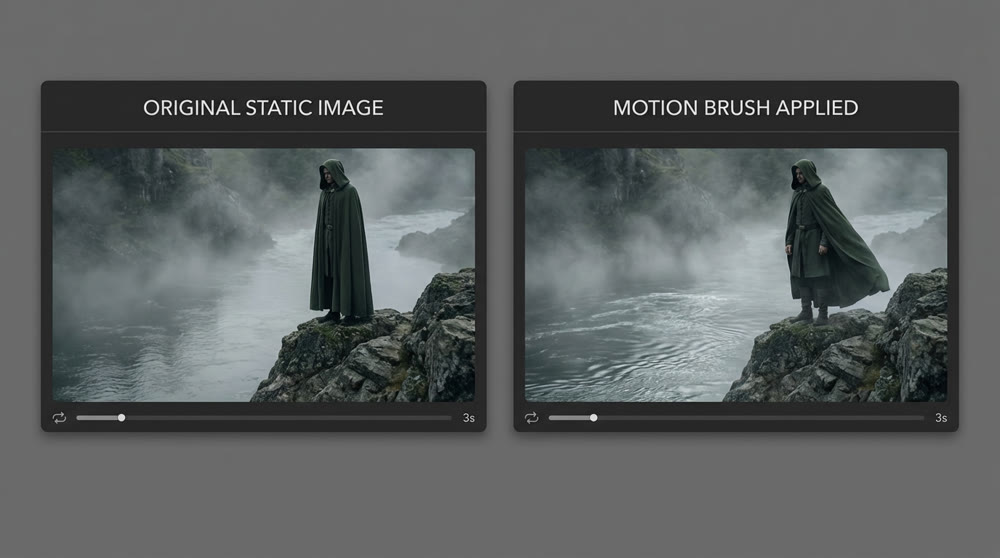
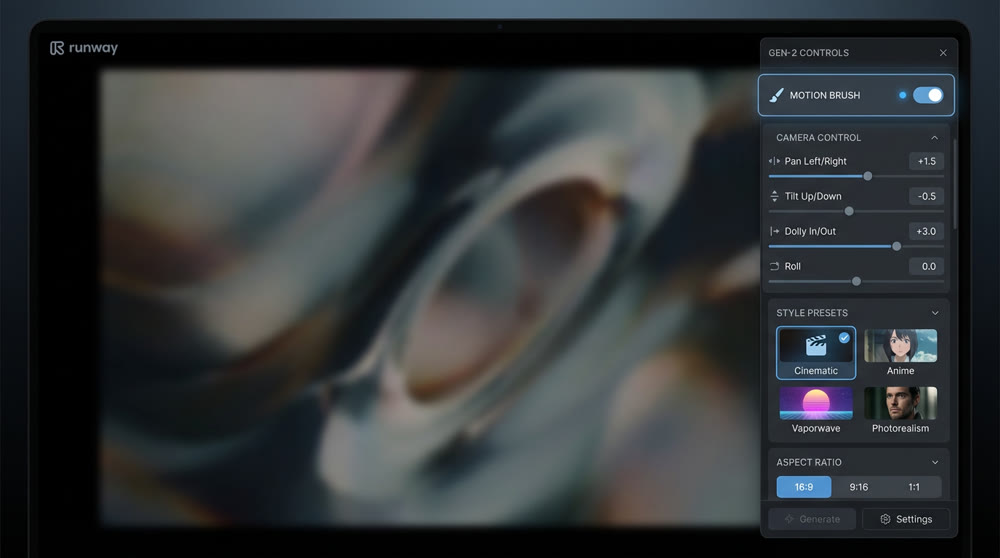
Exclusive to Gen-2, the Motion Brush is a game-changer for creative control. It allows you to "paint" motion onto specific regions of an image, defining both the area and the direction of movement (horizontal, vertical, or ambient). This eliminates the need for complex keyframing, enabling intuitive animation of elements like flowing water, waving hair, or passing clouds.
Camera Control: Orchestrating the Viewer's Perspective
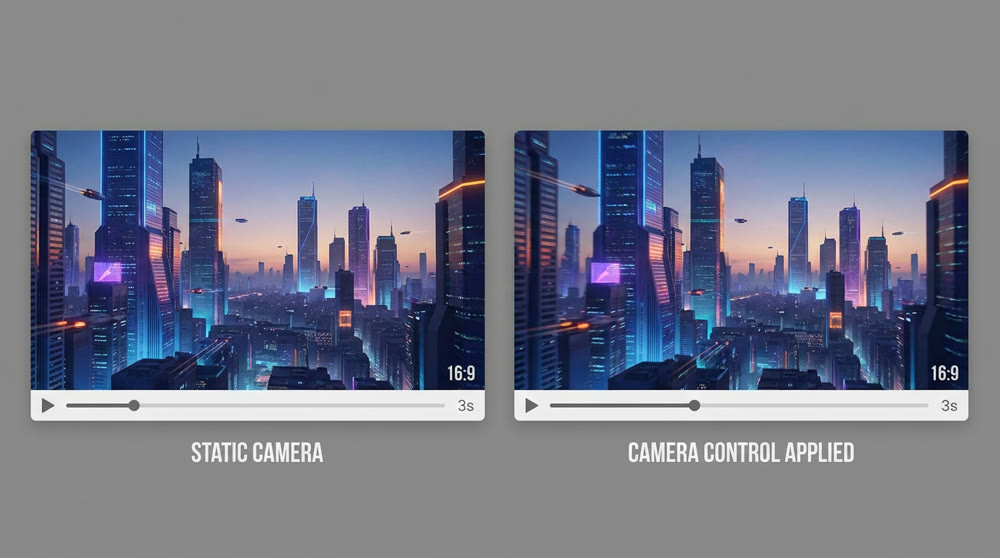
Another feature that sets Gen-2 apart is its robust Camera Control. This tool simulates real-world cinematography by allowing you to dictate camera movements such as pan, tilt, roll, and zoom. You can preview these effects, ensuring the final video aligns perfectly with your intended shot composition.
Curated Visual Styles
Gen-2 offers over 30 preset styles, a feature not available in Gen-3 Alpha. These presets—ranging from claymation and anime to impressionistic and isometric 3D—allow you to instantly apply a distinct aesthetic to your video, ensuring brand consistency or artistic expression without post-production color grading.
A Step-by-Step Workflow for Professional Results
Achieving high-quality output is a matter of following a structured process. Here’s a professional workflow for using Runway Gen-2.
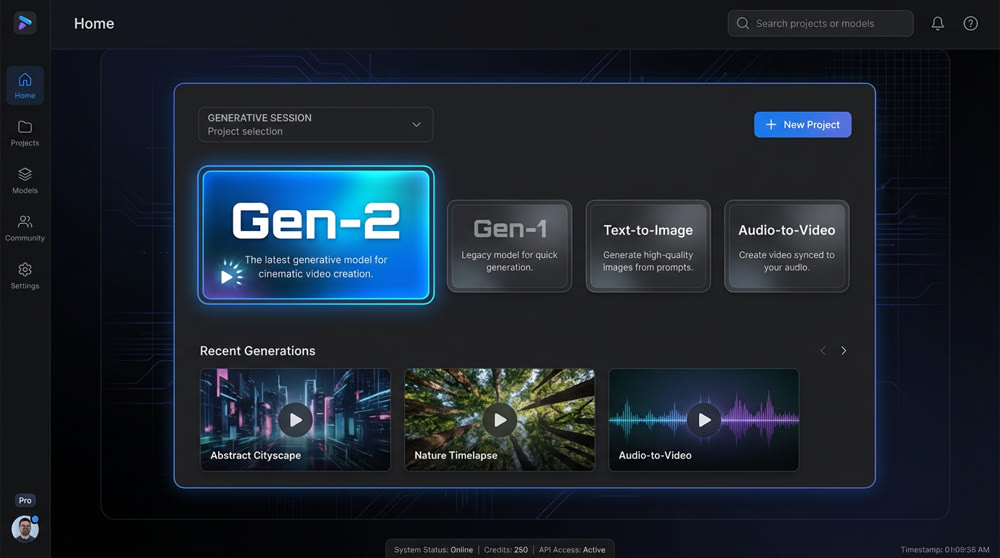
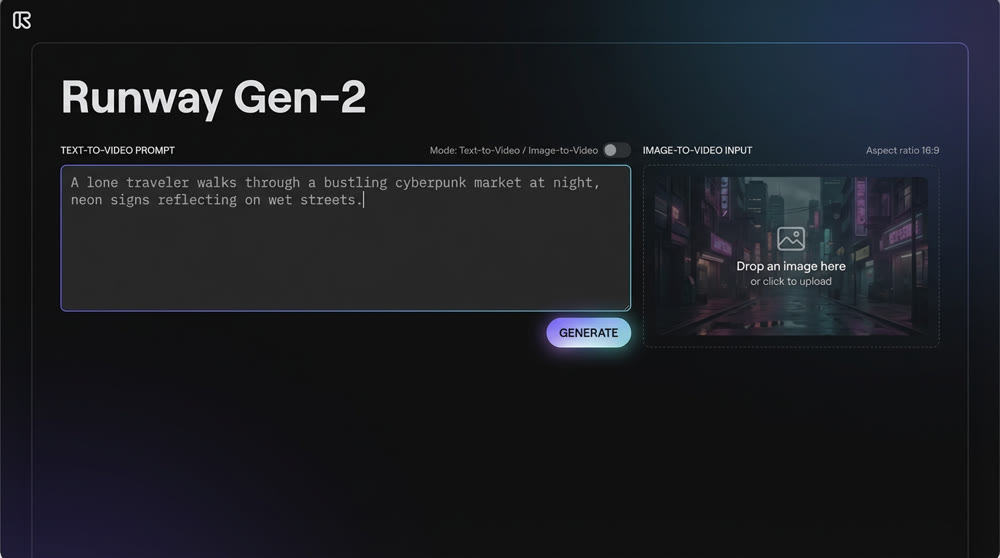
Step 1. Initiate Your Creative Session:
After logging into the Runway dashboard, navigate to the "Generative Session" area and select the "Gen-2" model to begin your project.
Step 2. Define Your Core Concept (Text or Image):
For Text-to-Video: Write a descriptive prompt. Specify the camera angle, scene elements, characters, actions, and overall mood.
For Image-to-Video: Upload your source image. Accompany it with a concise prompt that describes the desired motion, not the image content itself.
Step 3. Refine with Advanced Controls: Before finalizing, leverage Gen-2’s unique settings:**
Motion Brush: Isolate and animate specific parts of your scene.
Camera Control: Add professional-grade camera movements to enhance dynamism.
Style Presets: Apply an aesthetic filter that matches your creative vision.
Aspect Ratio: Choose the appropriate format (e.g., 16:9 for YouTube, 9:16 for Stories).
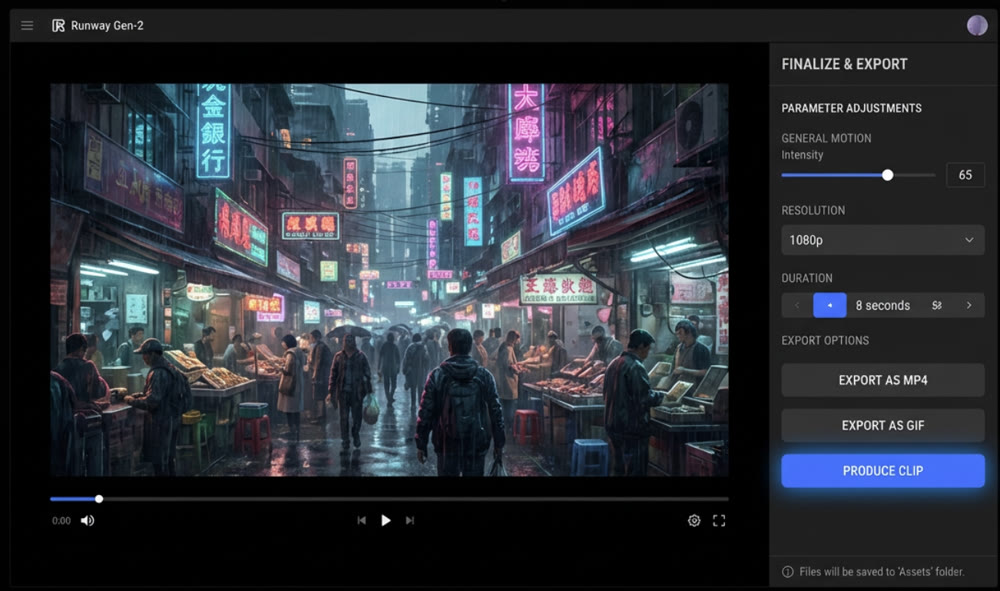
Step 4. Finalize and Export:
Adjust secondary parameters like General Motion intensity and Resolution. Once satisfied, select your duration and click to produce the clip. The final MP4 or GIF file will be available in your 'Assets' folder for download or further editing.
---🔎 Deep Dive: Looking for a Runway alternative? Read our full PixVerse AI video generator review.
📌 Best Practices for Prompting and Animation
- Prompt Structure: For text-to-video, use a clear structure:
[Camera Movement]: [Scene Description]. [Action or Detail].For example:Low angle shot: A chef meticulously plates a dessert in a high-end kitchen. Steam rises gently from the dish. - Positive Phrasing: Describe what you want to see, not what you don't. The AI responds better to direct, positive commands.
- Image-to-Video Focus: When using an image, your prompt should only guide the motion. If your image is of a calm lake, a prompt like "gentle ripples moving from left to right" is effective. A prompt describing a different scene will yield unpredictable results.
- Combine Controls: Layering Camera Control with the Motion Brush can produce highly expressive and complex shots. For instance, combine a slow zoom-in with subtle motion painted on a character's face for a dramatic effect.
Understanding how to use Runway Gen 2 effectively also means knowing when it's the superior choice over newer models. While Gen-3 Alpha and Turbo offer longer clip durations and faster processing, they sacrifice the granular controls that make Gen-2 a professional's tool. For projects requiring precise artistic direction—specific camera moves, isolated animations, or unique visual styles—Gen-2 remains the indispensable option.
Strategic Tool Selection: Gen-2 vs. Gen-3
| Feature | Runway Gen-2 | Runway Gen-3 Alpha / Turbo |
|---|---|---|
| Max Video Length | 4 seconds | 5-10 seconds |
| Creative Controls | Motion Brush, Camera Control | Limited / Not Available |
| Visual Styles | 30+ Presets | Limited / Not Available |
| Visual Fidelity | Good | Higher / Improved |
| Motion Consistency | Good | Higher / Improved |
| Best For | Precise artistic direction, fine-tuned animation |
Photorealistic scenes, longer clips, character consistency |
Elevate Your Creative Process with Genmi AI
Of course. Here is the revised text with the two new links naturally integrated.
While mastering individual tools like Runway Gen-2 is powerful, a truly efficient workflow often requires access to a spectrum of capabilities. This is where a unified platform like Genmi AI becomes a strategic asset. Genmi AI serves as a centralized creative hub, integrating top-tier AI models—including Runway (Gen-2, Gen-3 Alpha, and Turbo), Luma Dream Machine, Kling AI, and other powerful tools like Pixverse—under one roof. The Genmi platform demonstrates its commitment to the ecosystem by providing expert analysis on emerging technologies, as seen in the detailed WAN 2.2 review.
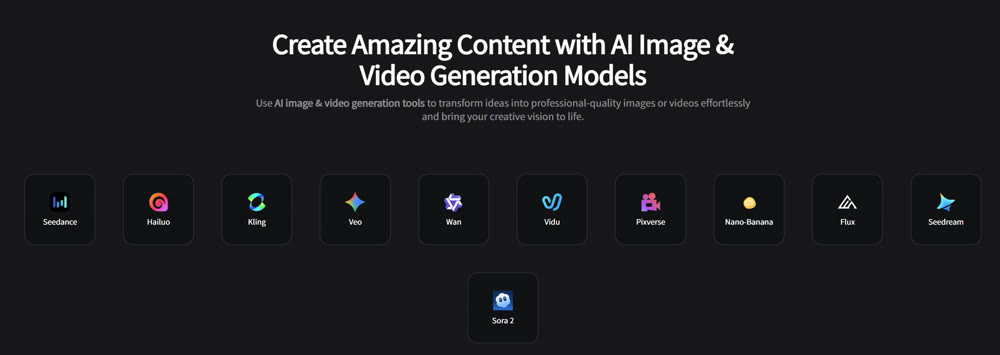
This integration allows you to seamlessly move between different creative tasks. You can start by crafting intricate text-to-video masterpieces, then switch to animating static visuals with advanced image-to-video capabilities, all without juggling multiple subscriptions or interfaces. Genmi AI streamlines the entire process, supporting 1080p resolution and a wide array of styles, empowering you to choose the best engine for each specific task. To explore this unified creative ecosystem, you can start your journey at Genmi AI.
Conclusion
Runway Gen-2 is far more than a simple AI video tool; it's a sophisticated instrument for creative control. By moving beyond basic prompting and mastering its unique features like the Motion Brush, Camera Control, and custom styles, you can elevate your video content from automated outputs to professionally directed sequences. This guide has provided the framework and best practices to do just that, confirming that while newer models may offer speed, Gen-2 provides the precision and versatility essential for high-stakes creative work. Ultimately, the future of content creation lies in platforms that provide not just power, but also choice and control, a philosophy embodied by integrated solutions like Genmi AI.
You now have the professional knowledge to transform your ideas into stunning visual stories. The next step is to put these techniques into practice. Start crafting your next project on a platform that offers the flexibility and power your vision deserves, like the multi-model environment of Genmi AI.
Recommended Articles
My Honest Adobe Firefly Review: A Strategist's Deep Dive
A hands-on Adobe Firefly review from a marketing strategist. Discover its real-world performance for professional use cases, from mockups to complex scenes.
Hedra AI Review: A Hands-On Test of Its Video Performance
Our in-depth Hedra AI review tests its lip sync, character animation, and full-body motion. See our hands-on results and find out if it's right for you.
Nano Banana Pro: A Comprehensive Review of Google DeepMind’s Image Tool
Explore Nano Banana Procapabilities, from high-resolution visuals to advanced multi-image editing. Read our detailed review and workflow insights.